Connect VahiWise to your Tally
Three steps, done once. VahiWise talks to TallyPrime through Tally’s own setting for other apps; nothing is installed inside Tally, and your Tally stays as it is.
-
1 In TallyPrime, let other apps connect
Press F1 (Help), open Settings, then Connectivity and Client/Server configuration. Set TallyPrime to act as Server (or Both) on port 9000, and save. If Tally asks to restart, let it.
Then open the company you want, as you always do. VahiWise sees only the companies open in Tally.
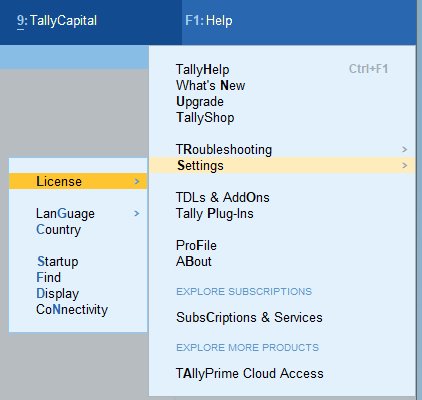
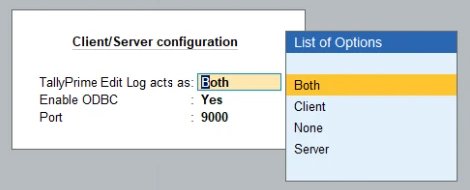
In TallyPrime: F1 Help, Settings, Connectivity, then Client/Server configuration. The names of the options can differ slightly between Tally releases. -
2 In VahiWise, point it at Tally
Open Company & Data, then Import. Under Live link to Tally, type Tally’s address:
http://127.0.0.1:9000when Tally runs on this PC, or the other PC’s address on your office network, such ashttp://192.168.1.20:9000.VahiWise lists the companies open in Tally. Pick yours and save the link.
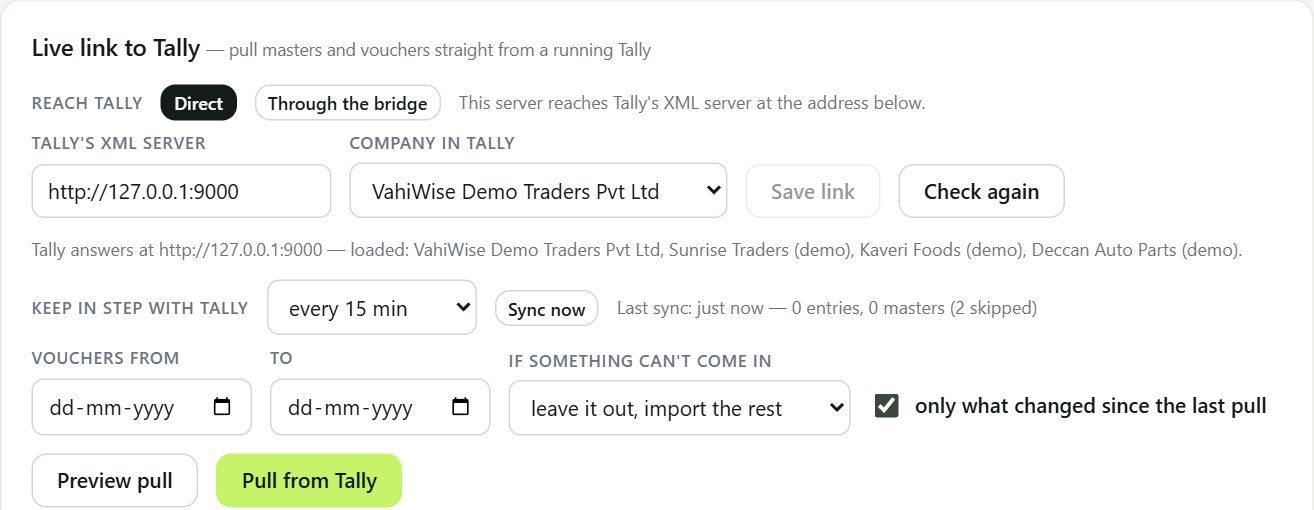
The link on a sample company. Under the address, VahiWise shows which companies Tally has open. -
3 Read your books
Press Pull from Tally for the first read of ledgers and vouchers. After that, choose how often to keep in step (from every 5 minutes to once a day) or press Sync now when you want fresh figures. Each read brings only what changed in Tally since the last one.
Reading never writes to Tally. Entries go into Tally only when someone approves them in VahiWise.
If VahiWise can’t see Tally
- TallyPrime is open, with the company loaded.
- The setting in step 1 is saved, and Tally was restarted if it asked.
- The port in VahiWise matches the port in Tally.
- Tally on another PC: that PC is on, on the same office network, and its Windows firewall lets other PCs reach that port.